


Purpose: How to use AutoSearch Standard Feature in Essentials L2
Applies to: Essentials L2 Version 2025.2 and above. Apply for ColorFlex L2, Agera L2, Vista L2 and Vista with Essentials L2.
The Autosearch Standard feature automatically identifies any Workspace with passing tolerances each time a measurement is taken.
To enable and use Autosearch Standard mode:
- Enable Autosearch Standard:
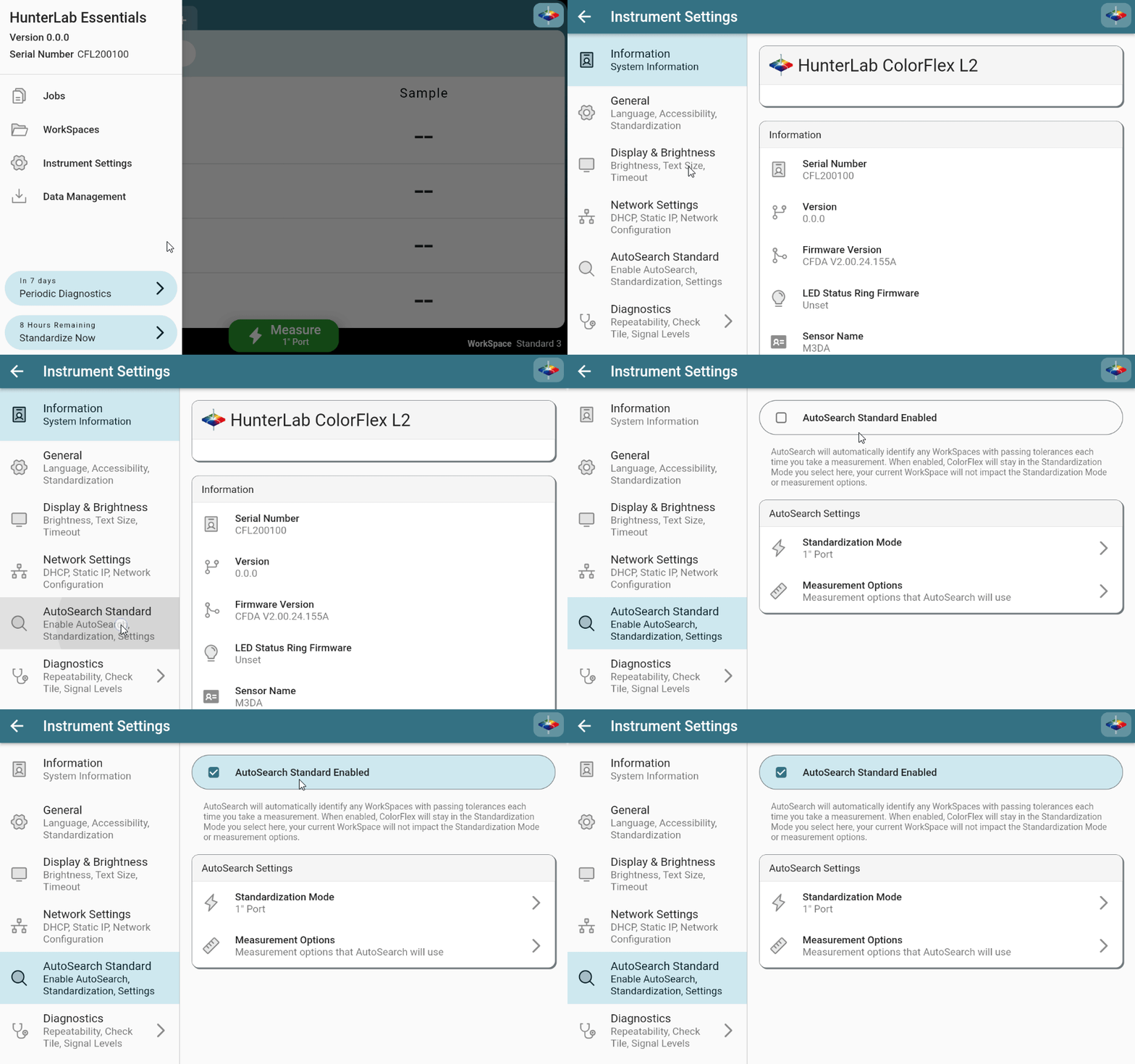
- Go to SYSTEM MENU → INSTRUMENT SETTINGS → AUTOSEARCH STANDARD.
- Check "AutoSearch Standard Enabled" and configure the standardization mode and measurement options.
Note: Once enabled, the measurement options (configuration and prompt settings) set here will override those in Workspace settings.
- Select Workspaces for Autosearch:
- Open EDIT WORKSPACE → MEASUREMENT OPTIONS for each Workspace you want to include.
- Check "INCLUDE IN AUTOSEARCH STANDARD" to add it to the Autosearch process.
Note: Only WorkSpaces with Physical, Numeric, or Hitch standards will be included in AutoSearch. Your WorkSpace must also have at least one tolerance applied. If you want to exclude a WorkSpace from AutoSearch, you can always exclude it in the WorkSpace settings page for that WorkSpace.
- Take a Measurement:
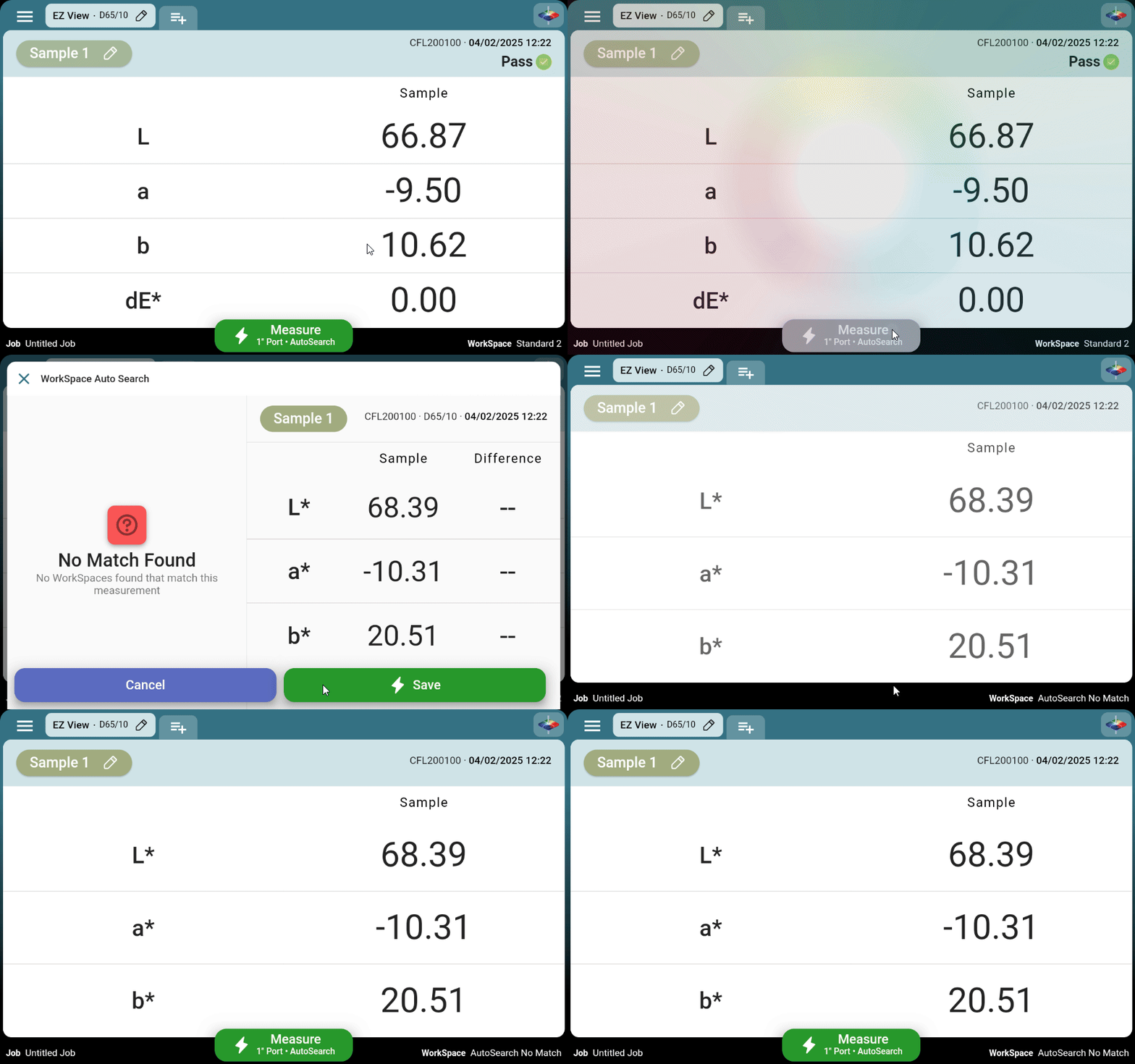
- The green action button will update to "AutoSearch."
- Place the sample and tap the MEASURE action button.
- Essentials will search the configured Workspaces, listing those with the same standardization mode as the current measurement and tolerances that pass.
- If multiple Workspaces are listed, select one to save.
- If no WorkSpace Standard Pass for this sample, you will still be able to save the sample to the "No Match" Workspace for later review.
Do you need more information? Submit a ticket a support team member will reach out to you soon!